Storing Uploaded Files and Serving Them in Express
Introduction
Imagine opening a courier office.
Customers arrive carrying:
profile pictures
PDFs
project files
suspiciously large ZIP folders named
FINAL_FINAL_REAL_FINAL.zip
Now imagine your office worker simply throws every package randomly across the floor.
No labels.
No storage rooms.
No organisation.
Absolute chaos.
That’s exactly what happens when developers handle file uploads without proper storage and serving systems.
Uploading a file is only half the story.
After upload, the server must know:
where to store files
how to organise them
how to serve them back safely
how users can access them
And in Express.js, this is handled using:
storage folders
static file serving
secure file handling practices
In this guide, you’ll learn:
where uploaded files are stored
local vs external storage
serving static files in Express
accessing uploaded files via URL
important security considerations
Let’s organise the courier office.
What Happens After File Upload?
When users upload files, the server needs somewhere to store them.
Common examples:
profile images
PDFs
videos
documents
Without storage:
Uploaded file disappears after request ends
The server must physically save the file somewhere.
Where Uploaded Files Are Stored
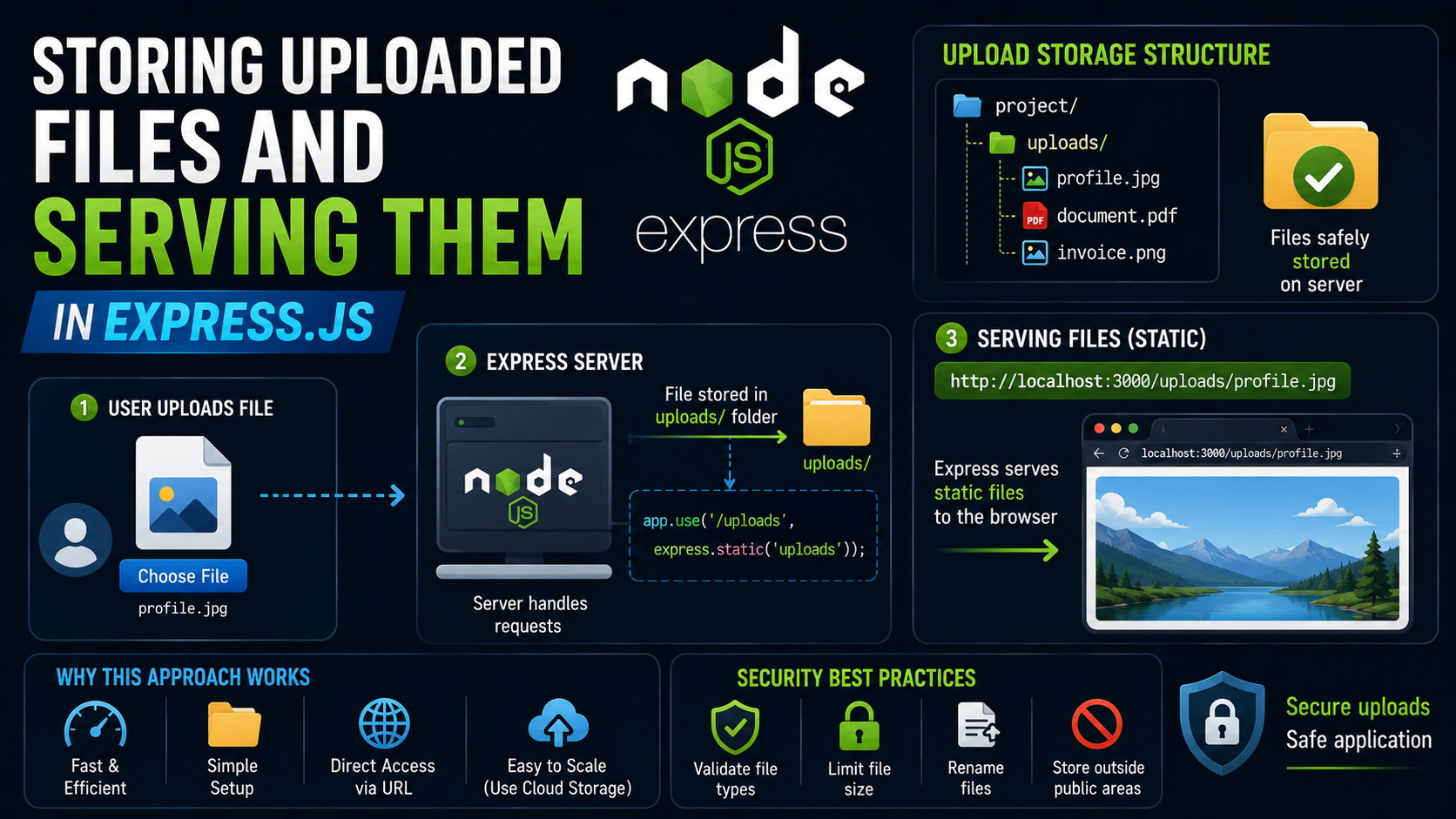
By default, uploaded files are usually stored in:
A folder on the server
Example:
uploads/
Inside this folder:
uploads/
 ├── image1.png
 ├── profile.jpg
 ├── document.pdf
Very common beginner setup.
Very simple.
Very practical.
Example Using Multer
const multer = require("multer");

const upload = multer({
  dest: "uploads/"
});
Here:
dest: "uploads/"
tells Multer:
“Store uploaded files inside uploads folder.”
Simple enough.
Upload Storage Folder Structure


Understanding Local Storage
Local storage means:
Files stored directly on server machine
Example:
project/
 ├── uploads/
 ├── app.js
 ├── package.json
The uploaded files physically exist inside project folder.
Advantages of Local Storage
simple setup
beginner-friendly
easy to test locally
fast access
Perfect for learning projects.
Disadvantages of Local Storage
As applications grow:
storage space becomes issue
servers may restart
files may get deleted accidentally
scaling becomes harder
That’s why large applications often use:
External storage systems
Local Storage vs External Storage
Local Storage
Files stored directly on server.
Example:
uploads/profile.png
External Storage
Files stored on cloud services.
Examples:
AWS S3
Cloudinary
Firebase Storage
External services handle:
scalability
backups
CDN delivery
storage management
Important Beginner Note
For learning Express:
Local storage is completely fine
No need to jump into cloud systems immediately.
One battle at a time.
Serving Static Files in Express
Uploading files is useful.
But users also need access to them.
That’s where:
Static file serving
comes in.
What Are Static Files?
Static files are files served directly to users without processing.
Examples:
images
CSS files
videos
uploaded documents
Think of static files like ready-made food in supermarket freezer.
No cooking required.
Just deliver directly.
Serving Static Files in Express
Express provides:
express.static()
Example:
app.use("/uploads", express.static("uploads"));
What This Means
This line tells Express:
“Anything inside uploads folder should be publicly accessible.”
Very important.
Very commonly used.
Very magical-looking initially.
Static File Serving Flow


Accessing Uploaded Files via URL
Imagine uploaded file:
uploads/profile.jpg
After enabling static serving:
app.use("/uploads", express.static("uploads"));
file becomes accessible at:
http://localhost:3000/uploads/profile.jpg
Express automatically serves it.
No extra route needed.
Very convenient.
Full Example
const express = require("express");

const app = express();

app.use("/uploads", express.static("uploads"));

app.listen(3000);
Now everything inside:
uploads/
is accessible through browser.
Real-Life Analogy
Upload Folder
Warehouse storing packages.
express.static()
Delivery counter giving public access.
URL Access
Tracking link customer uses.
Very easy mental model.
Organising Uploads Properly
As projects grow, developers often organise uploads.
Example:
uploads/
 ├── profile-images/
 ├── documents/
 ├── invoices/
Much cleaner.
Much easier to maintain.
Much less digital chaos.
Security Considerations for Uploads
This part is extremely important.
File uploads can become dangerous if handled carelessly.
Because users may upload:
malicious files
huge files
fake extensions
executable scripts
Servers must stay careful.
The internet can be wonderfully creative in terrible ways.
Important Security Practices
1. Restrict File Types
Example:
Only allow:
- jpg
- png
- pdf
Never trust file extensions blindly.
2. Limit File Size
Prevent users from uploading:
17GB cat videos
Example with Multer:
limits: {
  fileSize: 1024 * 1024
}
Limits upload to 1MB.
3. Store Files Outside Critical System Areas
Never allow uploads into:
root system folders
Keep uploads isolated.
4. Rename Uploaded Files
Avoid using original filenames directly.
Example:
photo.png
could conflict with another file.
Safer approach:
171234567-photo.png
Unique filenames reduce problems.
5. Validate File Types Properly
Checking extension alone is unsafe.
Better systems inspect actual file content.
Why Safe File Handling Matters
Improper upload handling can lead to:
server crashes
storage overload
security vulnerabilities
malicious file execution
Even beginner projects should learn safe habits early.
Future-you will be grateful.
Common Beginner Mistake
Many beginners upload files successfully but forget:
express.static()
Result:
404 Not Found
The file exists physically.
But Express isn’t serving it publicly.
Very common confusion.
Another Common Mistake
Storing uploads directly inside:
public/
without organisation.
Projects quickly become messy.
Dedicated upload folders are much cleaner.
Real-Life Analogy Recap
Upload
Customer submits package.
Storage Folder
Warehouse storing files safely.
express.static()
Public delivery counter.
Security Validation
Security guard checking dangerous items.
Simple.
Practical.
Very backend-development energy.
Unique Tip for Beginners
Always create a dedicated uploads folder early.
Example:
uploads/
and inside it:
images/
documents/
Tiny organisational habits save enormous headaches later.
Final Thoughts
Handling uploaded files properly involves more than just receiving them.
Servers must also:
store files safely
organise uploads cleanly
serve static files correctly
validate uploads securely
Using:
upload folders
express.static()safe validation practices
Express applications can handle uploaded files efficiently and securely.
At a high level:
Upload → Store → Serve → Protect
And once you understand that lifecycle, file handling in Express becomes far less intimidating and much more manageable.